
AICKO CAPTURE is free screen capture software for Windows 10 and 11. It takes a picture of a zone, a window or the screen, records a video in MP4 and includes an editor to annotate, highlight and crop.
French learners can use it to keep a clip of an online lesson, save a sentence from a web page or record their own spoken practice. It is simple and keeps the main options within reach.

Get AICKO CAPTURE
At a glance
- Platform: Windows 10 and 11
- Source: Microsoft Store
- Price: free
- Output: images and MP4 video
- Editor: annotate, highlight, crop
- Account required: no
A typical day with screen capture
During an online French lesson, the teacher shows a table of verb endings. You press the shortcut, choose the exact zone and the image goes to the clipboard. You paste it into your notes and underline the irregular forms with the editor.
In the evening you record a short video of yourself reading a text with your voice, and play it back to hear your pronunciation.
What this screen capture software includes
The software offers:
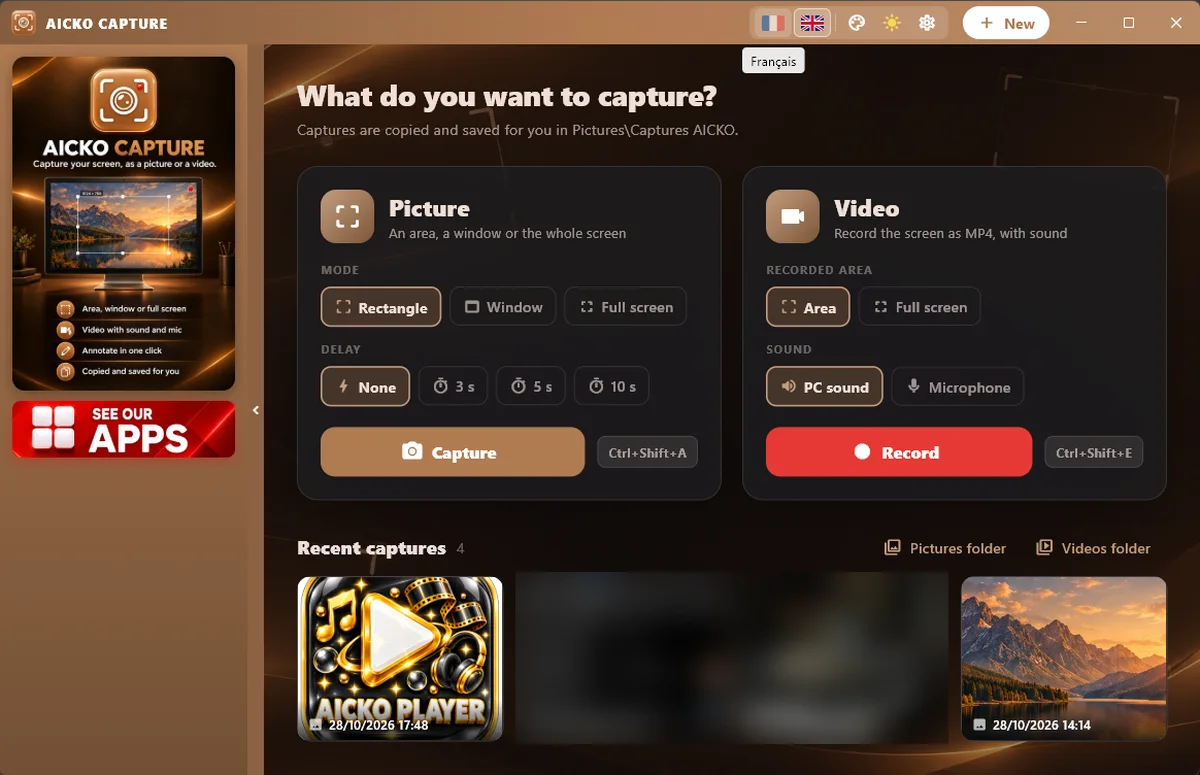
- capture of an exact zone, a window or the full screen;
- copy to the clipboard, or right-click and save as a PNG or JPG image;
- video recording to MP4, with a red frame around the zone, a recording bar with a timer, and a pause button;
- sound from the computer and from the microphone;
- global keyboard shortcuts to start a capture quickly;
- an editor to annotate, highlight and crop images;
- interface in French or English, with several colours.
Getting started with your first capture
- Install AICKO CAPTURE from the Microsoft Store.
- Choose Image or Video.
- Draw the zone you want to keep.
- For a video, start the recording and use the pause button when you need a break.
- Annotate the result in the editor, then save it.
Using it for French study
Pair the recorder with our A1 quizzes and B1 resources: save the questions that cost you points, annotate the correct form and review the folder every Sunday.
If you take a class online, ask first whether recording is allowed. For private study, a clip of your own reading aloud is a good tool to compare your progress month after month, up to the B2 level.
Tips for clear captures with screen capture software
Select a tight zone around the text you want to keep, so that the picture is easy to read on a phone. Use the highlighter in the editor to mark a verb ending or an accent, and crop the rest.
For videos, test the sound before a long recording. A short test of ten seconds avoids a surprise later. The pause button lets you stop while you look up a word and continue without cutting the clip.
Compatibility and installation
AICKO CAPTURE works on Windows 10 and 11, through the Microsoft Store. The program is free and has no account. Your images and videos are saved on your own computer.
The recorder uses the Windows graphics system to capture the screen, and falls back to other methods when the first one is not available.
Frequently asked questions
Is AICKO CAPTURE free?
Yes. AICKO CAPTURE is a free screen capture program for Windows. It captures images and records MP4 videos, and has no account to create.
Can I capture only a part of the screen?
Yes. You can capture an exact zone, a window or the whole screen. A red frame appears around the zone during video recording, with a bar showing the timer.
Can I record my voice and the computer sound?
Yes. AICKO CAPTURE can record the sound of the computer and the microphone with the video. You can pause the recording and continue it afterwards.
Can I annotate a screenshot?
Yes. A built-in editor lets you annotate, highlight and crop a capture before you save it as PNG or JPG or paste it from the clipboard.
